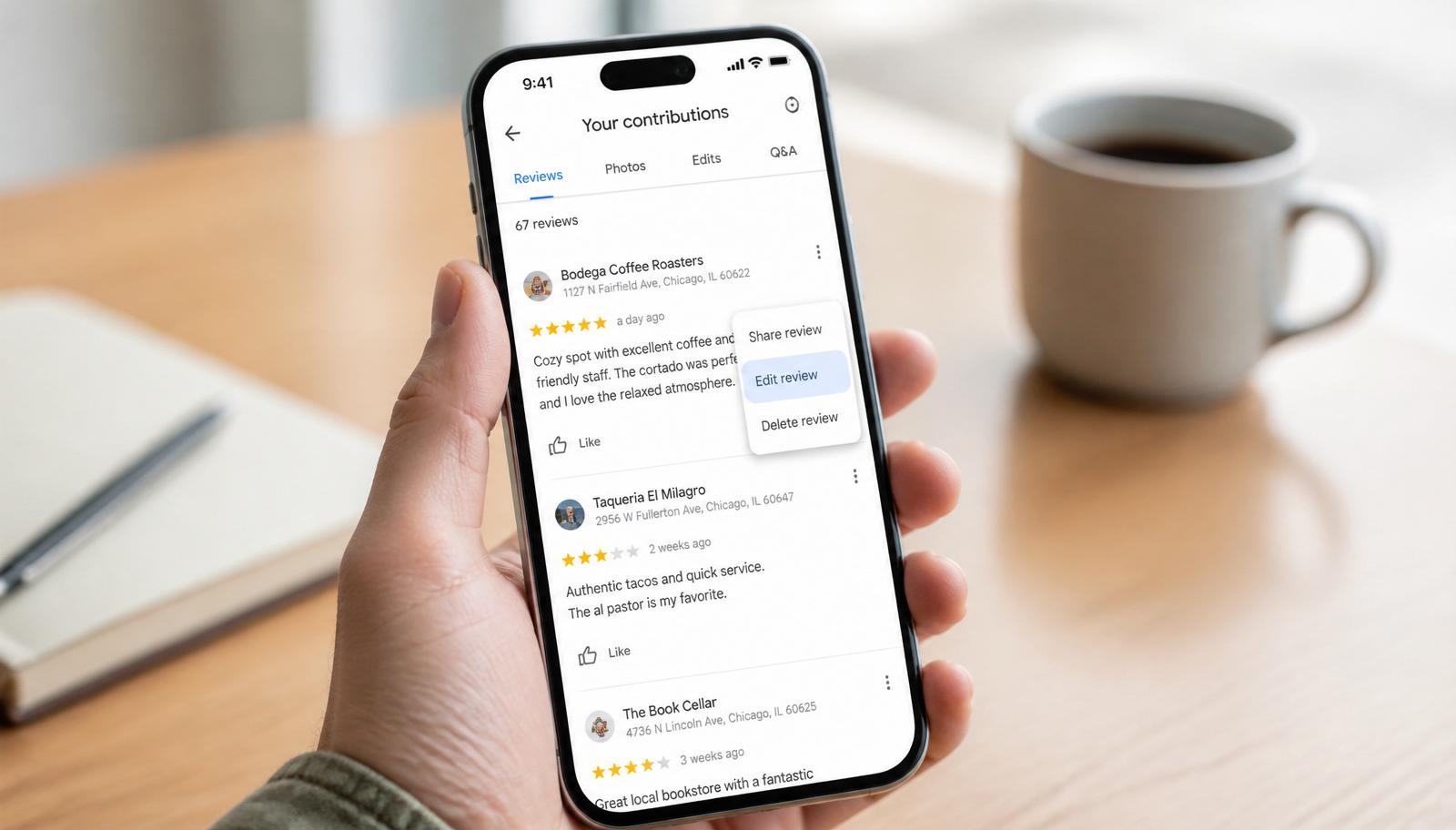
I read around 400 Google reviews a week, part of running BGR Review is that clients forward me theirs before they hit post, or after, when something has gone sideways. The most common message I get is not about a bad review from a stranger. It is from someone who left a review themselves, in the moment, and now wants to change it. Maybe the business fixed the problem. Maybe they were too harsh. Maybe they typed "grate" instead of "great" and it is haunting them.
Good news: Google lets you edit any review you have ever posted, at any time, in about 60 seconds. No approval queue, no cooldown, no email confirmation. This is the 2026 version of the walkthrough, mobile, desktop, old accounts you can barely remember signing into, plus the two edits that get quietly filtered and what to do instead.
The short version
Open Google Maps or the Google app, tap your profile picture in the top right, choose Your contributions, tap Reviews, find the one you want to change, tap the three-dot menu next to it, and tap Edit review. Change your stars, change your text, tap Post. Done. The updated review replaces the old one on the business profile within a few minutes, and the star rating recalculates the same day.
Edit a Google review on your phone (iPhone or Android)
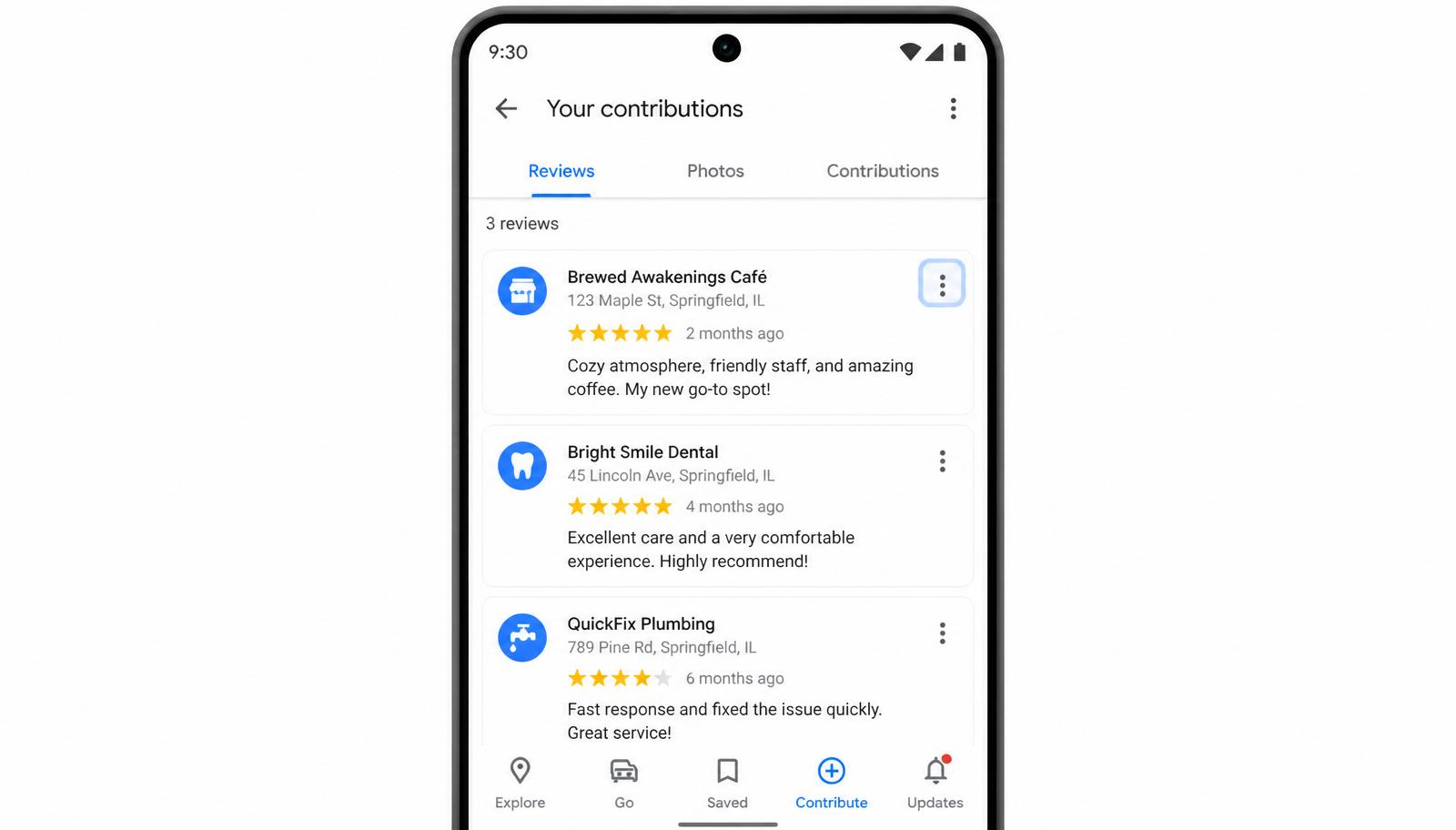
- Open the Google Maps app (works the same in the Google app if you prefer it).
- Tap your profile picture in the top-right corner. If you manage multiple Google accounts, double-check the account name at the top of the menu, reviews live under the account that wrote them, not your "main" one.
- Tap Your contributions.
- Tap the Reviews tab. You will see every review you have ever written, newest first.
- Find the review you want to change and tap the three-dot menu (⋮) on its card.
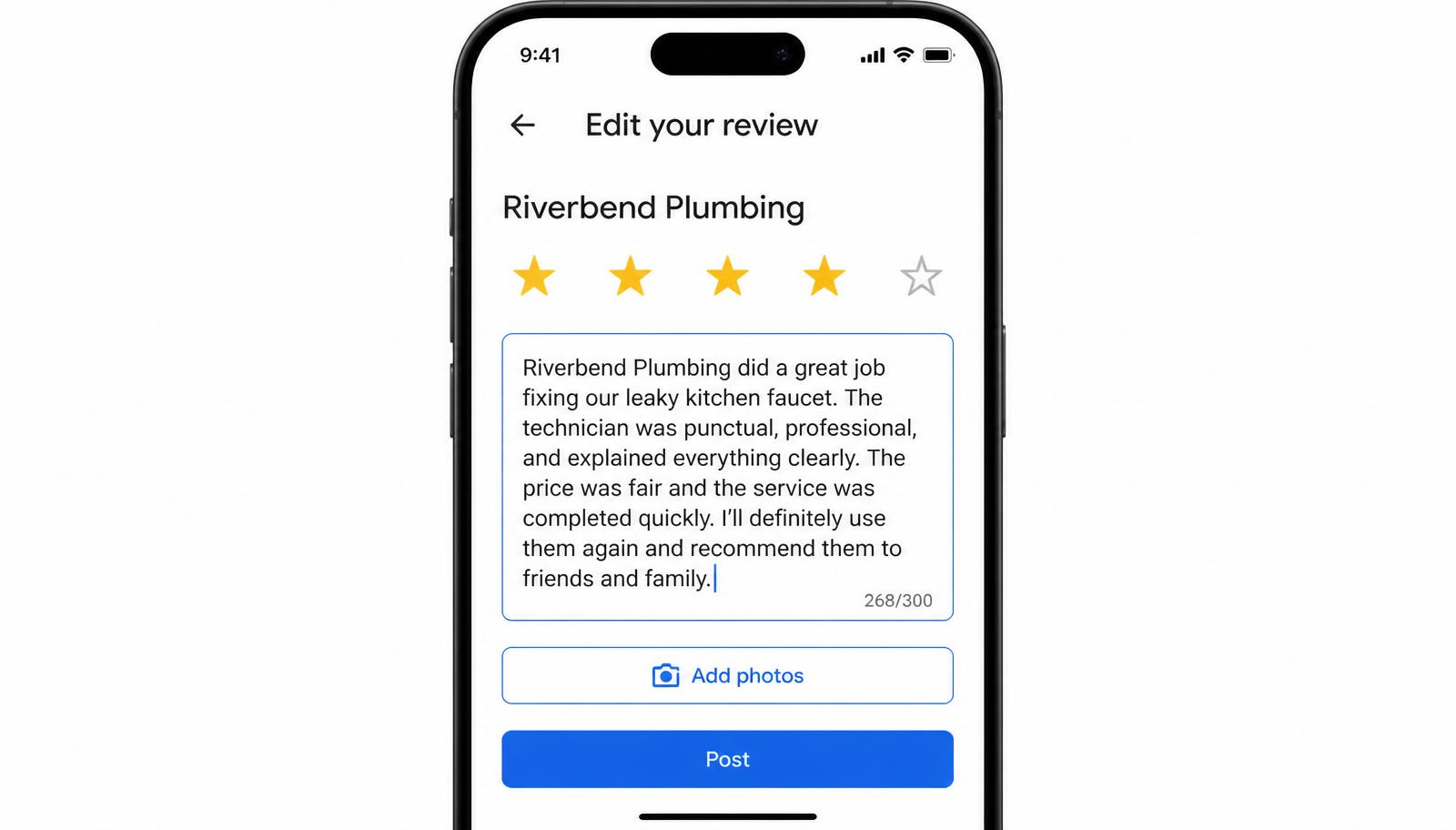
- Tap Edit review. The write-a-review form opens with your original stars and text pre-filled.
- Change what you want, stars, text, photos, all of it. Tap Post when you are done.
Edit a Google review on desktop
- Open google.com/maps in any browser and sign in with the Google account that wrote the review.
- Click the menu icon (three horizontal lines) in the top-left corner.
- Click Your contributions in the side menu.
- Click the Reviews tab.
- Find the review, click the three-dot menu next to it, choose Edit review.
- Adjust and click Post. Same flow as mobile, one extra click.
Can't find the review you want to edit?
In 90% of "my review is missing" cases I look at, the review was written under a different Google account. Google keeps a separate contribution history for every account you have ever signed into, a personal Gmail, an old university address, a shared family account. Sign out, sign in with each candidate account, and check Your contributions on each one until you find it.
If you find the account but the review still is not there, Google has filtered it. Filtered reviews disappear from your public contributions and from the business profile. Editing a filtered review will not unfilter it, the fastest fix is usually to delete the filtered review and post a fresh one from an account with more Google history and location data. My deep-dive on why Google review filters kick in and what to do about it covers exactly which signals trigger the filter in 2026.
The two edits that quietly get your review filtered
Editing is safe. Editing badly is not. Google's spam system re-scores an edited review the moment you tap Post, and two patterns almost always get the whole review removed rather than just updated.
- **Editing after the business asked you to.** If the business owner emails or messages you asking to change your rating and you do it within a day or two, Google's coordination signals often catch it and quietly filter the update. If a business genuinely earned a rating change (they fixed the issue, redid the work, refunded you), wait a week and mention what actually changed in your new review text, not "the owner asked me to update this."
- **Editing to add an external link, a phone number, or a competitor name.** Any of these three edits pushes the review straight into spam review. Keep edited reviews focused on your experience with the business itself; leave URLs and third-party references out.
How to write an edit that actually holds
The most useful edited reviews I read are the ones that add a second dated paragraph rather than rewriting the whole thing. Something like: "Update, June 2026: The owner reached out after this review, sent a technician the next morning, and fully redid the install at no charge. Bumping to 4 stars, the follow-through was genuinely impressive." That reads as human, keeps the original context, and Google's system almost never filters it. Rewriting a 1-star review into a 5-star gush with no explanation, on the other hand, gets filtered about half the time.
What happens to the business when you edit
The business gets a notification (if they use the Google Business Profile app) that a review was updated, but they do not see what changed. Their public star average recalculates within 24 hours, and any owner reply that was attached to the original review stays attached to your edited version, which sometimes looks strange if the reply references specifics you have since edited out. Nothing you can do about that, but worth knowing.
If you are a business owner reading this from the other side and a customer's edited review is still unfair, the process for you is different, flagging, evidence, and the redressal form. Our how to remove Google reviews guide covers the removal side end to end, and our pay-after-success removal service handles the whole workflow when the review clearly violates policy.
And if you are the business owner and the review you wanted to update was yours in the first place, one you posted from a personal account to test the flow, or years ago before you owned the location, edit it into a real customer voice or delete and replace. Either way, our managed Buy Google Reviews service is built for teams who want their profile to reflect real, aged, geo-relevant customer voices without any of the platform risk that comes from testing on your own account.
Q.Can I edit a Google review after the business replied to it?
Yes. The owner's reply stays attached to the edited review, which means if you delete the specific thing the owner responded to, the reply can end up looking out of context. That is cosmetic, it does not affect the edit itself.
Q.Is there a limit to how many times I can edit a review?
Not officially. In practice, editing the same review three or four times in a short window triggers Google's spam signals and can get the whole review filtered. Get it right in one or two edits and leave it.
Q.Will the business get notified when I edit my review?
If the business uses the Google Business Profile app or dashboard, yes, they get an update notification. They cannot see what you changed, only that the review was updated and what it says now.
Q.Can I edit a review someone else wrote?
No. You can only edit reviews from your own Google account. If someone else's review needs to change, they have to sign in and edit it themselves. Businesses that want an unfair review removed have to go through Google's flag or redressal form flow instead.