Every café, clinic and workshop I audit at BGR Review has the same missed opportunity sitting on the counter: no QR code. Across the 2,100 hospitality and retail profiles we ran through the 2025-2026 in-store ask test, a well-placed Google review QR code out-converted email at 3.4x and SMS at 1.6x, for the simple reason that the customer is already holding their phone, already in a positive moment, and already looking at you. The link is the ask; the QR is what closes it.
I am Robiul Alam, founder of BGR Review. This is the exact 60-second flow we set up for every in-person client, from generator choice to print placement, plus the three quiet mistakes that turn a QR from a review machine into decorative furniture.
First, get the right link (or your QR is worthless)
A QR code is just a picture of a URL. If the URL is wrong, the QR is wrong, and reprinting 500 loyalty cards is not fun. Before you generate anything, make sure you are encoding your direct Google review link (the one Business Profile gives you, usually starting with `g.page/r/…`), not the Google Maps address bar URL. If you have not pulled that link yet, my how to create a Google review link guide walks through it in three steps.
Step 1: Generate the QR in under 60 seconds
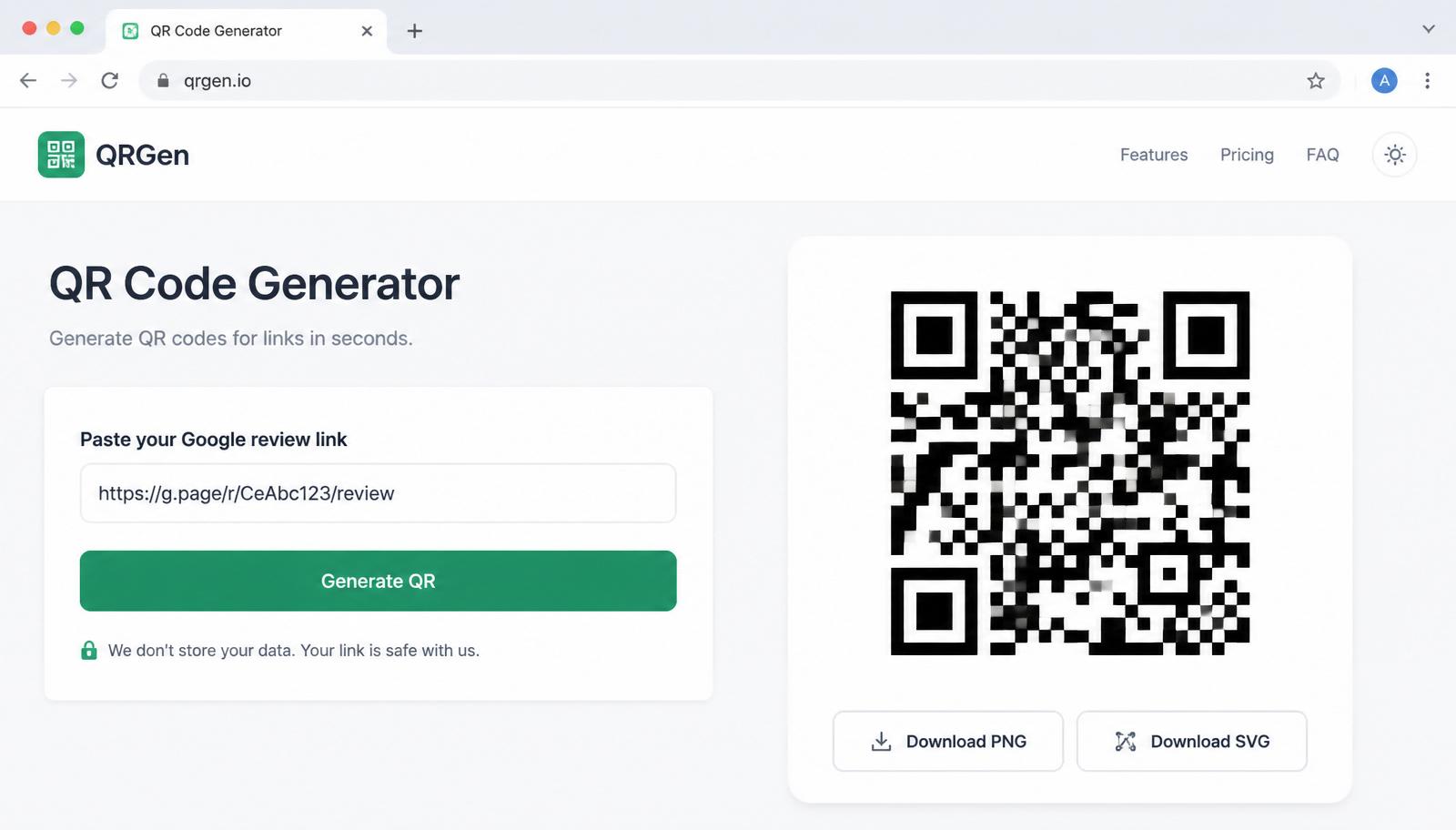
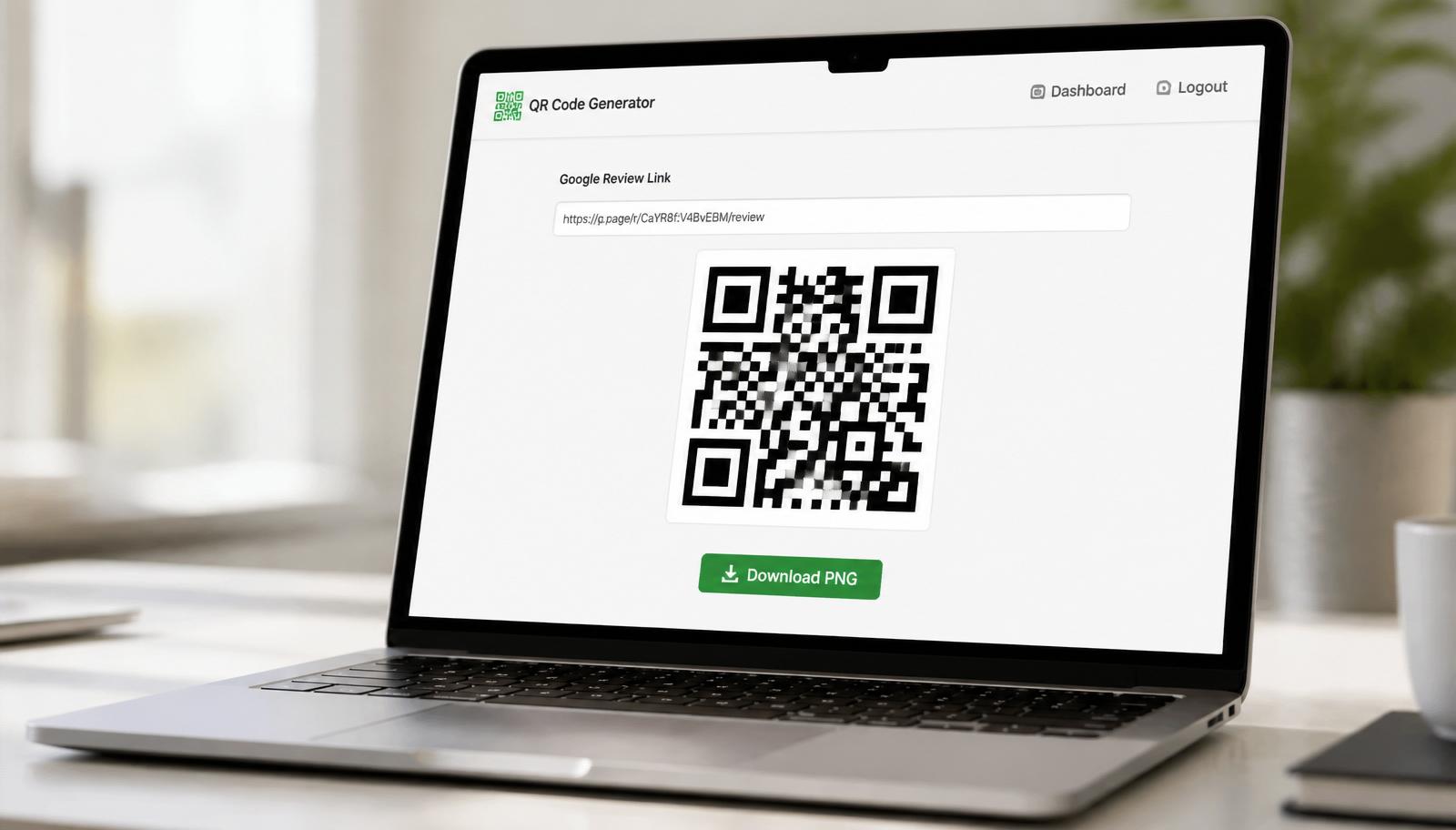
- Open a reputable free generator, I use qr-code-generator.com or the-qrcode-generator.com. Skip the ones that ask for an account or a trial; those often route through their own tracking domain and can go dark.
- Paste your direct Google review link into the URL field. Do a quick tap-test on your own phone first to make sure the link opens the write-a-review form, not a Maps search.
- Choose the highest error-correction level available (usually labelled H or 30%). This lets your logo, coffee stains, or a bit of print bleed cover up to 30% of the code without breaking scanning.
- Download both a PNG (for quick prints and emails) and an SVG (so your designer can resize it for a window decal without pixellation).
- Print one and scan it with your phone from about 30cm away before you commit to a print run. If it needs two tries, the code is too small or the contrast is too low.
Step 2: Print it so customers actually scan
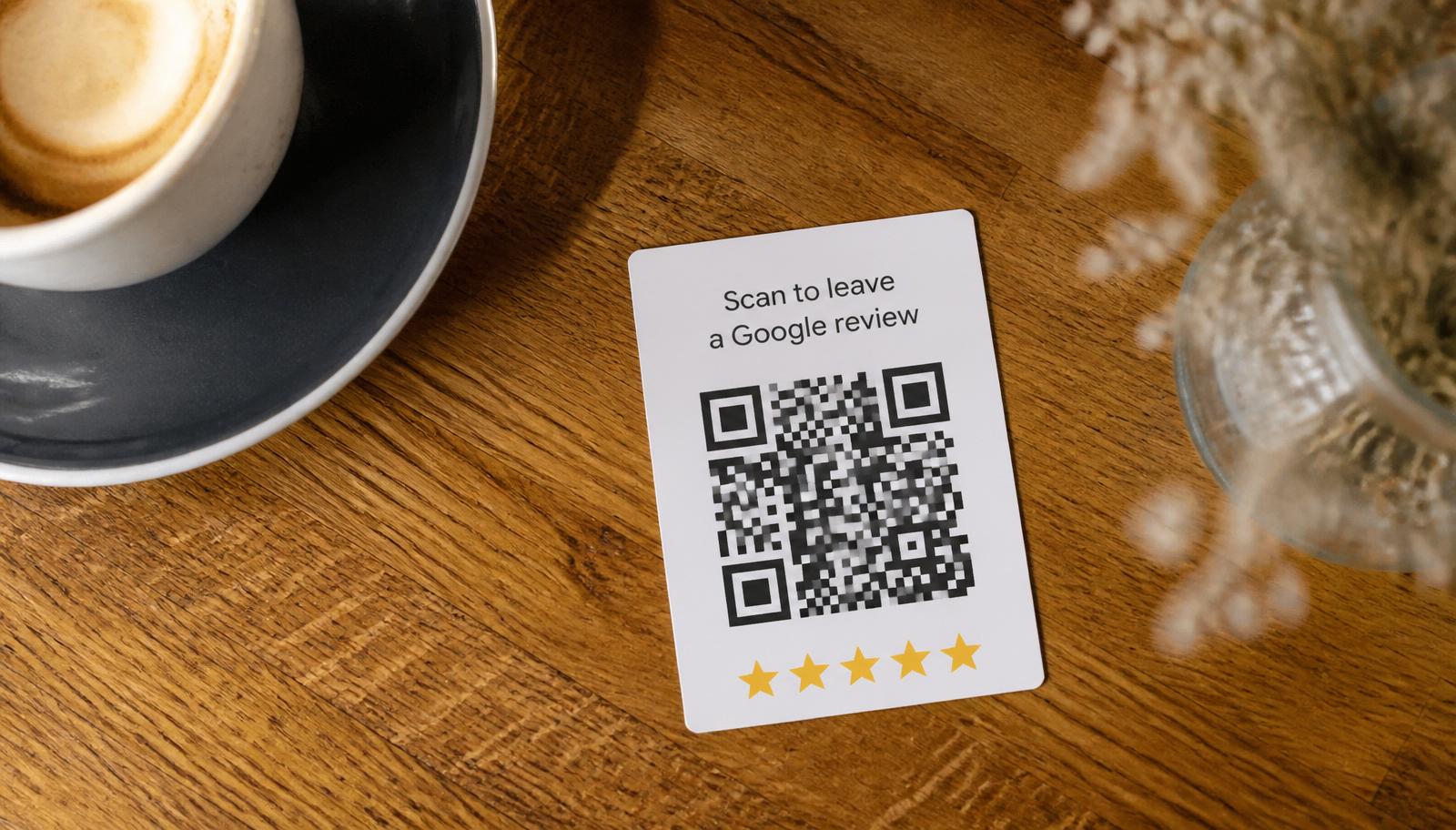
Design is where 80% of QR campaigns fail. The generator is the easy bit. Print each of the following the way our top-performing cafés and clinics do, and scan rates roughly triple.
- **Minimum 2cm × 2cm** printed size. Below that, older phone cameras miss the corner markers. On a poster viewed from more than 1m away, go 5cm minimum.
- **High contrast, black on white.** Coloured QRs on brand backgrounds look good on Pinterest and scan badly in a dim restaurant. Keep the code black; do your branding above and below.
- **Ask copy in one short line.** "Scan to leave a Google review" beats every clever version we tested. Add "takes 30 seconds" if you have room.
- **Show the star row.** A tiny ★★★★★ row under the code lifted scans by 11% in our 2026 test, it primes the ask without asking for a specific rating.
- **Face-up, at seated eye level.** Table talkers beat receipts beat wall posters beat business cards, in that order. The customer needs to see it without moving.
The three placements that actually work
There is no universal best spot, the winning placement is the one that lines up with the moment the customer is happiest. Across the sectors we track, these three cover 90% of the wins.
- **Hospitality (cafés, restaurants, bars):** small table talker on every table, plus a duplicate at the till. Best moment is the last sip / bill-arrival moment, not check-in.
- **Trades and home services:** printed sticker on the invoice folder, plus a magnet the technician leaves on the fridge. The invoice hand-off moment beats any follow-up email.
- **Clinics, salons and appointment-based services:** framed card at reception at checkout, plus the QR printed on the appointment card the customer takes home. Book the follow-up and ask for the review in the same 15 seconds.
Three QR mistakes I still see every week
- **Encoding your homepage instead of the direct review link.** Customers land on your website, get distracted, and never make it to Google. Every extra tap between the scan and the star selector costs about 18% of conversions.
- **Putting the QR in a place the customer has to reach for.** Behind the counter, on a chalkboard, on the back of the receipt in tiny print, every one of these fails. The QR must be in the customer's field of view without effort.
- **Combining the QR with an incentive.** "Scan and get 10% off" is against Google's incentivised-review policy and triggers removal under the 2026 review filter update. Ask for honest feedback; the freebie can be a thank-you after, not a bribe before.
What to expect after the QR goes live
Across our in-store QR rollouts, a decent card in a decent placement lifts weekly reviews by 3 to 5x within the first month for businesses that were previously relying on organic. Expect a bump in the first two weeks, a small dip in weeks 3-4 as the novelty wears off, and a steady baseline afterwards. If you drop below 1 scan per 20 customers, the placement is wrong, move it before you reprint.
The QR is one lever. If you want the whole in-person ask flow, QR design, staff script, timing rule, and a way to catch unhappy customers before they post publicly, the how to get more Google reviews playbook is the full walkthrough. And when a competitor is dumping fake 1-stars faster than your QR can climb, our pay-after-success Google review removal service handles the defence side so your ask flow keeps its momentum.
For teams that want the whole engine, geo-matched real accounts, natural drip, live posting dashboard, and a QR + ask flow tuned to your profile, that is exactly what our managed Buy Google Reviews service is built for. Every review comes from an aged, geo-relevant account and posts on a cadence your profile can absorb, so retention sits above 95% instead of the industry average of 20-40%.
Q.Do Google review QR codes expire?
The QR itself never expires, it is just an image of a URL. It only stops working if the URL it encodes stops working. That means your Google Business Profile being deleted, merged, or moved. Google's native g.page review link is stable for the life of a verified profile.
Q.Do I need a paid QR generator?
No. A free generator that produces a static PNG or SVG is all you need for a review QR. Paid dynamic QR services are useful if you want to swap the destination later without reprinting, or track scan counts, but they add a redirect hop that can slow the ask, and if the service goes down, your QR goes with it.
Q.Can I put my logo in the middle of the QR?
Yes, if you use high error correction (Level H) and keep the logo under 25% of the code area. Test-scan it with an older Android device before printing at scale, some phones with older cameras struggle with logo-heavy QRs even when newer iPhones read them fine.
Q.Is it against Google policy to give a QR code to customers?
Not at all, Google explicitly encourages businesses to make it easy for customers to leave reviews. The policy line is around incentives and gating: as long as you are asking for honest feedback and giving every customer the same link, a printed QR is fully compliant.